
Labs
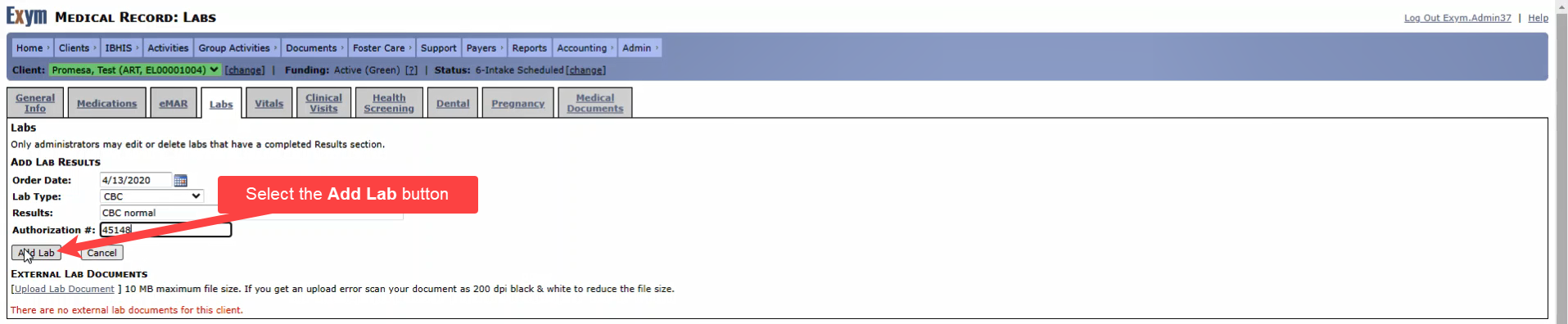
The Clients | Medical Record | Labs tab allows users to view, add to, and print client's lab results. Lab results can be entered directly into the system or uploaded. Only administrator can edit or delete labs that have a completed Results section.
To add the client's lab results:
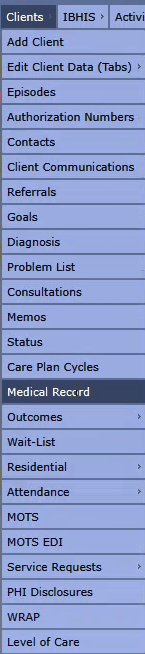
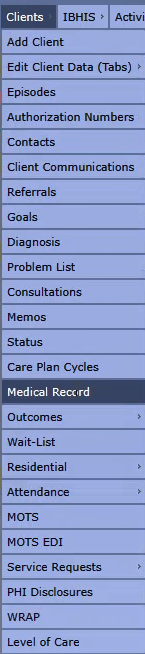
- Navigate to Clients | Medical Record on the navigation menu
- Select the Labs tab

- Select the Add New Lab Result link

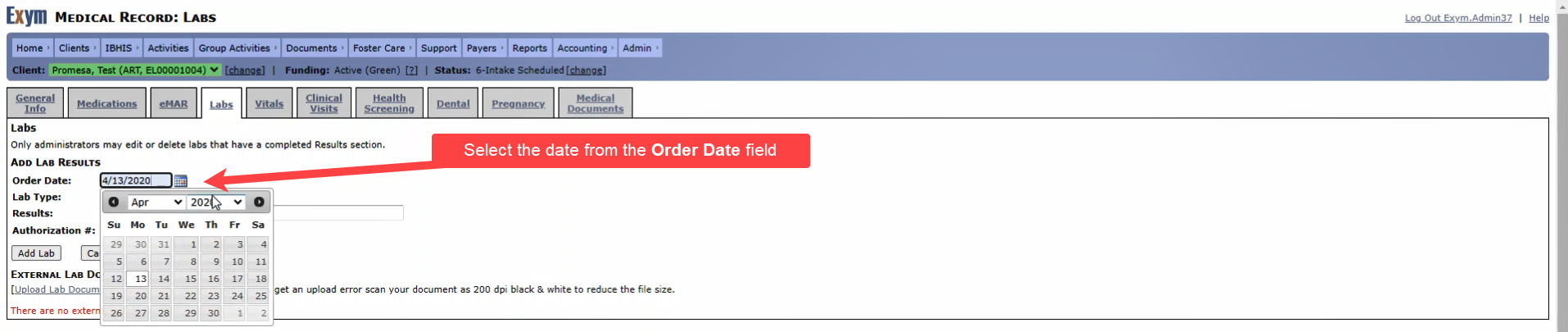
- Select the date the labs were ordered from the Order Date field
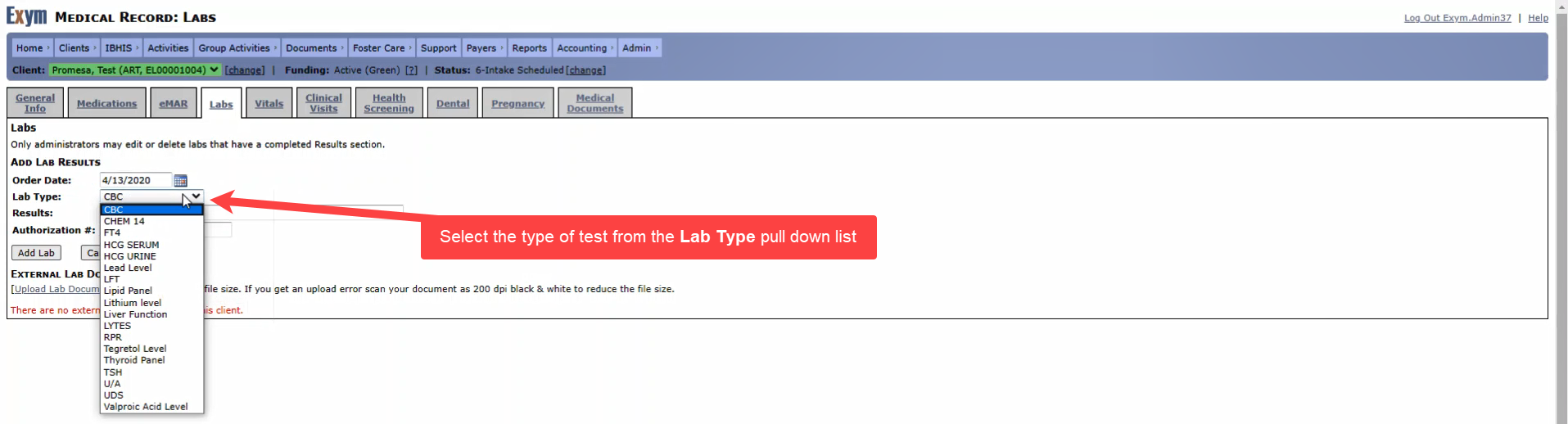
- Select the type of test from the Lab Type pull down list
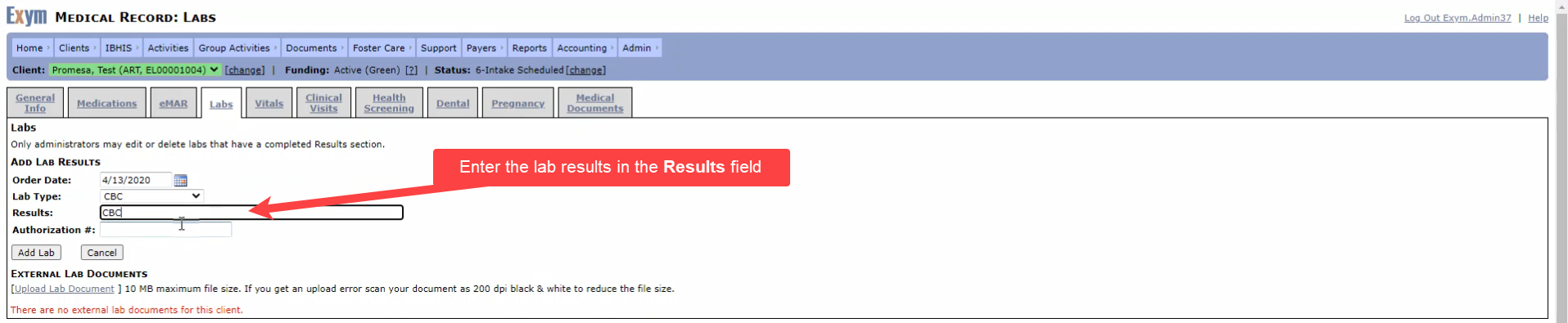
- Enter the results in the Results field
- Enter the authorization number in the Authorization # field
- Select the Add Lab button to save the results
To upload a lab document:
- Navigate to Clients | Medical Record on the navigation menu
- Select the Labs tab

- Select the Upload Lab Document link
- Enter the document description in the Description field

- Select the date the document was created from the Document Date field
- Select the Choose File button and browse to the computer or network location to select the file for upload

- Select the Upload button to upload the file